Ed Thorne is a mixing and mastering engineer based in London. He also teaches. That combination matters when he reviews a workflow tool, because he understands what session prep costs in real time, not just in theory.
He has been using fMusic daily for several months. His verdict after testing it on real sessions is that it is almost absurdly easy to use.
This is a breakdown of what he actually tested, what the software got right, where he had to make manual corrections, and what the pricing looks like.
What Ed Was Working With
Before running fMusic, Ed walks through his Pro Tools template to show why session prep is time-consuming in the first place.
His template uses multiple layers of aux routing folders: kicks and snares to a shells bus, shells to a drum bus, drums to a drum/bass/percussion bus, which then routes to a master instrument bus alongside acoustics, guitars, pianos, strings, and sound effects. Vocals follow a similar structure with leads, backing vocals, doubles, harmonies, and adlibs all routed into their own hierarchy.
That kind of layered routing is standard for professional mixing sessions. It is also exactly the setup that makes manual session prep slow.
One practical note he flags for anyone setting up fMusic: all aux routing folders need to be open in the arrange window before running import. If they are collapsed, the software cannot place tracks into the correct buses automatically.
How the Import and Session Prep Works
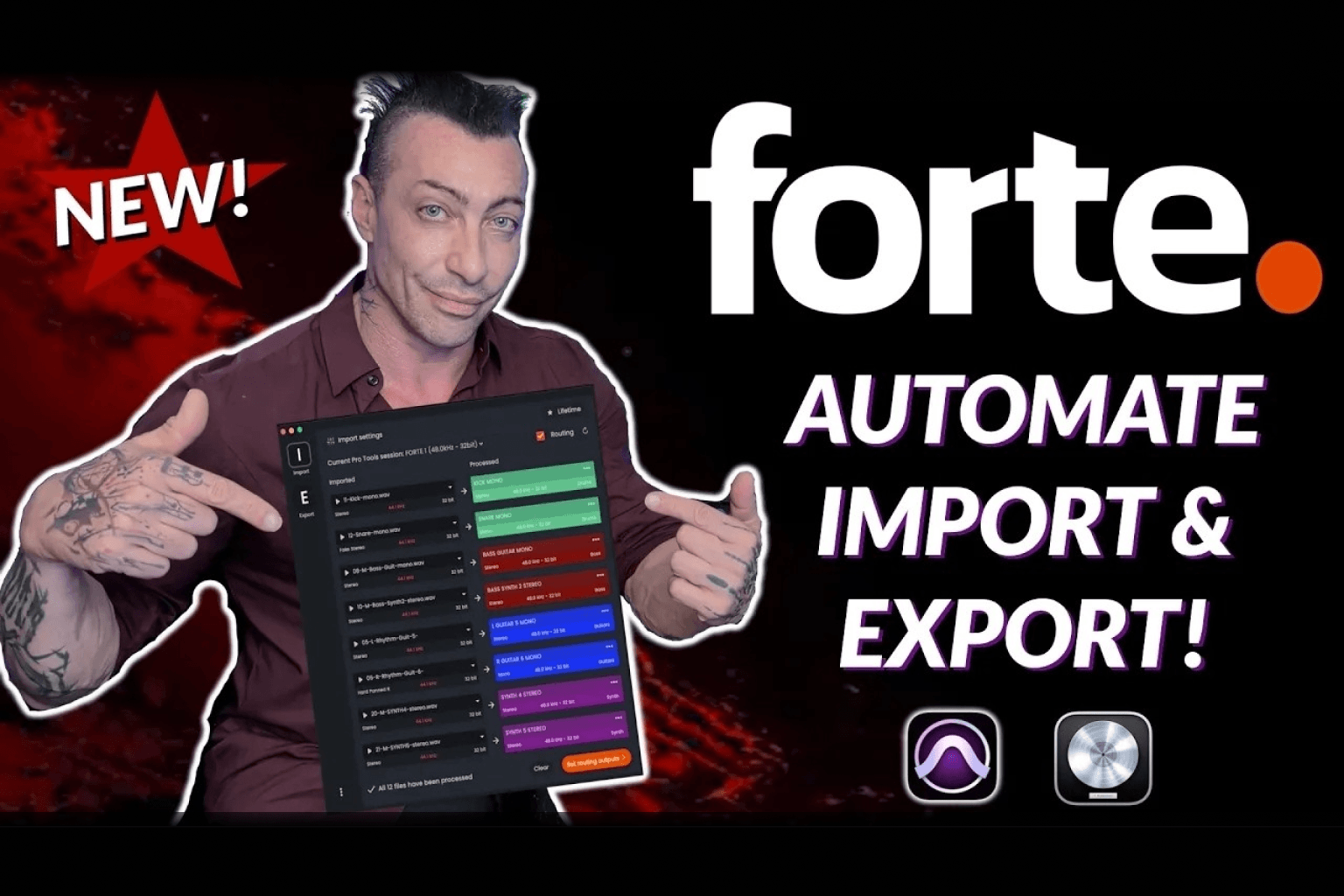
fMusic uses a combination of file name analysis and AI audio detection to identify what each file is and route it to the correct bus.
In the import settings, Ed sets up categories that map to each bus in his template: kicks to the kicks bus, snares to the snares bus, overheads to the overhead bus, and so on. The category list inside fMusic covers a wide range of instruments, including some he had not heard of, which he notes with some amusement. Each category gets a colour that matches his DAW colour system and a routing destination.
Additional settings Ed configures before running prep:
Auto rename: Simplifies file names. Ed keeps this off by default. His reason is practical: if he needs to go back to a client and ask for a reprint of a specific file, a renamed file called "kick" tells the client nothing. He wants the original file name so the conversation is unambiguous.
Track height: A feature Ed requested directly to the team roughly a month before the video. In earlier versions, all imported channels came in at the smallest size. He works at medium and wanted every track, bus, and aux folder to arrive at that size automatically. The team added it.
Strip silence: Cuts silent regions out of audio files. Ed uses this. He finds it makes navigation significantly faster, particularly on sessions where an instrument plays in the chorus but not the verse.
Stereo to mono conversion: Automatically converts stereo stems to mono. A common issue when receiving sessions from producers who export everything from Logic as stereo by default.
Sample rate conversion: If the project is at 44.1kHz and some delivered files are at 48kHz, fMusic converts them automatically on import. In the session shown, Ed received additional files late from a client at 48kHz. fMusic handled the conversion without any manual steps.
The Import in Practice: What It Got Right and Where It Needed Correction
Ed imports 27 files and runs the session prep in real time on camera without speeding up the footage.
fMusic correctly identifies and routes the snares, toms, hi-hats, bass, percussion, pads, synths, and synth lead. It correctly flags the fills as drum-related audio but routes them to the drum folder rather than the toms bus. Ed moves them manually. One impact file gets assigned to strings instead of sound effects. He corrects that as well.
Two corrections out of 27 files.
The routing, colour coding, and placement into aux folders runs automatically. By the end of the process, every track is sitting inside the correct routing folder at medium height, with silence stripped, ready to mix. Work that used to take him at least half an hour, he says, now takes about five minutes.
Multi-Session Preparation Queue
Before running the single-session prep on camera, Ed demonstrates the multi-session queue feature.
He sets up a second session using the same template, adds the same audio files, confirms the routing, and adds it to the queue. At that point he has two sessions queued for preparation. He notes that for an album, this would compress what used to be a full day of session prep into a fraction of the time, particularly if a template already exists for that artist.
How Export Works
After session prep, Ed moves to the export tab.
He selects individual buses for export rather than combined bounces, choosing the drum bus and bass bus as examples. He notes that selecting multiple tracks together would bounce them as a combined file, which is useful in some contexts but not what he wants here.
Settings per export:
- Mix source: Ed selects the full instrument bus and mix bus processing so each stem reflects the full mix context, including mix bus processing. He notes that side-chain relationships would not be fully captured, and flags this as a feature he would like to see addressed in a future update.
- Mode: Online (real-time print for analog gear) or offline (faster than real time for in-the-box sessions). He selects auto.
- File format and bit depth: Multiple formats can be set simultaneously. Ed uses this for mastering, where a single source file needs to produce a Spotify-ready version, a high-resolution version, and a 96kHz version in one pass.
- Output folder: Set once, files go there automatically.
Background Processing: The Feature That Changes Daily Workflow
Once the export is running, Ed opens Final Cut Pro and starts setting up a podcast edit session.
fMusic continues printing in the background. Pro Tools keeps working. His Mac stays usable. His point is that where many tools lock up the computer while they run, fMusic lets you carry on working on other projects, which he sees as a significant time saver.
He puts it in concrete terms: ten stems from a four-minute song at analog print speed is 40 minutes of printing. With fMusic, that is 40 minutes where you are still working, not waiting.
The one practical constraint he flags: he would not try to open Logic while Pro Tools is printing via fMusic. Both DAWs compete for audio interface priority and that creates problems. For anything that does not need the audio interface, admin, email, editing in Final Cut, the computer is fully available.
Multi-Session Export Queue
Ed also demonstrates queuing multiple sessions for export. He sets up custom print configurations for two sessions and queues both. From that point, pressing print queue runs both sequentially without further input.
For studios processing multiple sessions regularly, this removes the need to babysit each export.
Pricing
Ed covers pricing directly in the video. These are the options as shown:
Free version: Limited to eight audio files and one export. Functional for exploring the interface but not suited to professional use at scale.
Subscription: Monthly plans available, with options varying by DAW.
Pay once (perpetual license):
- Both Pro Tools and Logic Pro: €499
- Pro Tools only: €100 less than the dual-DAW price
- Logic Pro only: slightly cheaper than Pro Tools
The perpetual license includes updates for 12 months from purchase. That includes any new DAWs added to fMusic during that period. After 12 months, continuing to receive updates costs €49 per update pack.
Ed is transparent about his view on this: he would prefer not to pay for updates, but he understands why the model exists given the development pace. He notes that even without further updates, the software as it stands at time of purchase is worth the one-time cost.
15-day unlimited trial available.
Ed closes with a clear recommendation: try the software, set it up for your own workflow and bus systems, and the payoff is session setup in about five minutes.
Frequently Asked Questions
Who is Ed Thorne?
Ed Thorne is a mixing and mastering engineer and educator based in London. He tests workflow tools across real sessions and covers them in detail on his YouTube channel.
Was Ed paid for this review?
No. He received a lifetime license to fMusic in exchange for the video and discloses this at the start. He was not paid.
How long did session prep take before fMusic?
Ed estimates roughly 30 minutes for the kind of multi-bus session shown in the video. With fMusic, the same session takes approximately 5 minutes.
How accurate is the automatic routing?
In the 27-file session shown in the video, fMusic correctly routed 25 files without intervention. Two needed manual correction: one fill assigned to the wrong drum sub-bus and one impact file routed to strings instead of sound effects.
Can you use your computer while fMusic exports stems?
Yes. fMusic runs the export in the background while your Mac stays usable. Ed demonstrates this by editing a podcast session in Final Cut Pro while stems are printing in Pro Tools.
What DAWs does fMusic support?
Pro Tools and Logic Pro currently. Ed notes in the video that the team has confirmed plans to expand to other DAWs.
Is there a free version?
Yes. The free version is limited to eight audio files and one export. A 15-day unlimited trial is also available.
What does the €49 update pack cover?
After the 12-month update period included with the perpetual license, continued software updates are available for €49 per update pack.
Try fMusic
The 7-day unlimited trial gives you full access to test it across your own sessions before committing. If you are on Pro Tools, a free version is also available through Avid Link at avid.com/resource-center/forte.
.png)